

Defender – Intune
Modern Management and old problems
I typically review the vulnerabilities and examine the recommendations in Microsoft Defender. I know it is a long list. However, I haven’t come to mind, but I will still see some legacy vulnerabilities there.
Even in a modern Intune and Microsoft Defender environment, legacy software configurations can persist quietly and lower your Threat & Vulnerability Management for Easier Identification, I call it (TVM) score than expected.
Recently, while reviewing Defender TVM reports, I noticed three vulnerabilities that stood out:
- Disable Flash on Adobe Acrobat Pro XI
- Disable Flash on Adobe Reader DC
- Block outdated ActiveX controls for Internet Explorer
- Block webpages from automatically running Flash plugins
- Disable JavaScript on Adobe Acrobat Pro XI
At first glance, these seem outdated—after all, Flash has been discontinued since 2021—but these findings highlight a reality for IT admins even when an application is long gone, sometimes its configuration remnants or registry keys may still exist, tricking Defender into thinking the vulnerability is still active.
Discovery: How Defender Found Them
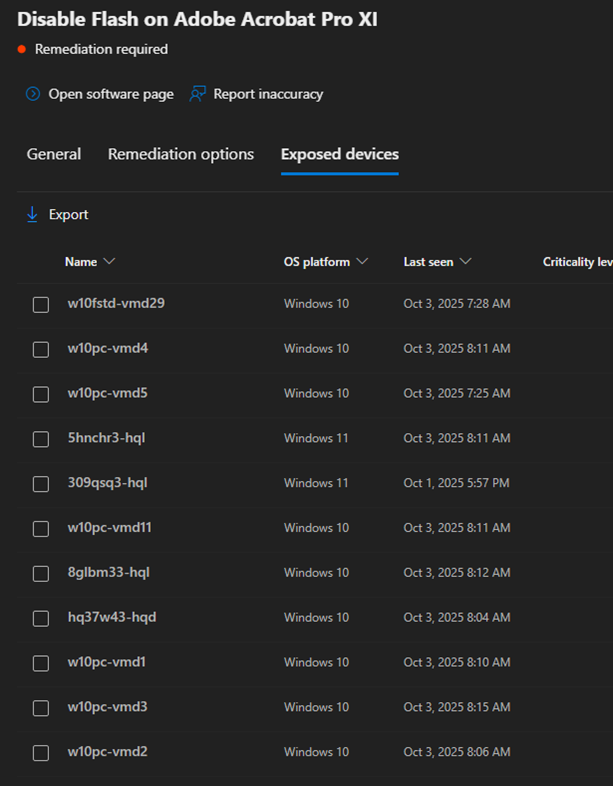
Using the Microsoft Defender Vulnerability Management dashboard, Defender> Endpoints>Recommendations, I identified several devices flagged with these three vulnerabilities.
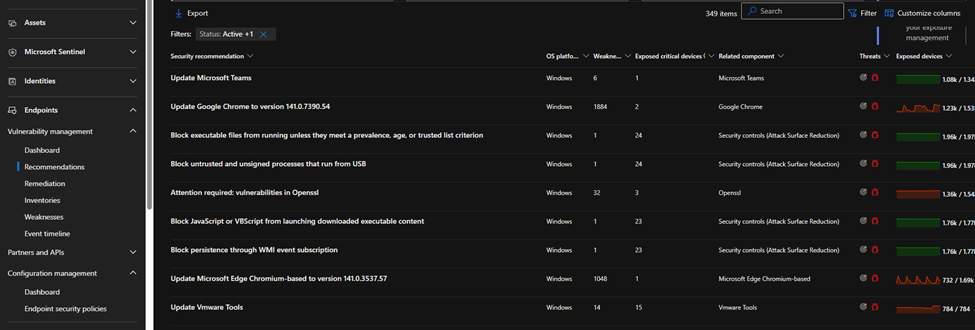
By diving into the device inventory, I saw:
- No visible “Flash” software installed.
- No active Adobe updates pending.
- But registry keys still referencing Flash components or JavaScript enablement remained in the user and machine hives.
Defender detects these vulnerabilities through configuration state checks, not active file scans.
That means for example,
- Even if Acrobat XI is gone, leftover keys like
HKLM\SOFTWARE\Policies\Adobe\Acrobat Reader\11.0\FeatureLockDown\bEnableFlash
or
HKLM\SOFTWARE\Policies\Adobe\Acrobat Reader\DC\FeatureLockDown\bEnableFlash
may still exist. - Similarly, JavaScript enablement is stored under
HKLM\SOFTWARE\Policies\Adobe\Acrobat Reader\11.0\FeatureLockDown\bDisableJavaScript.
So, Defender’s “Disable Flash” or “Disable JavaScript” findings can persist even if the program is no longer used, because the registry state remains vulnerable.
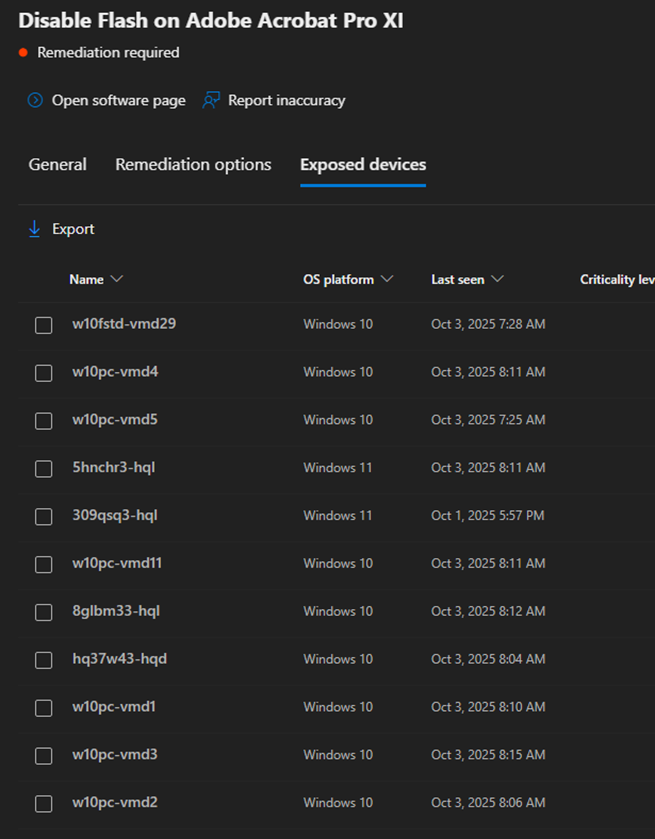
Screenshots from the Defender.
Remediation: Intune
I went through many of these above problems, and I will mention just an example of how to remediate some of these issue not all, because you got the point.
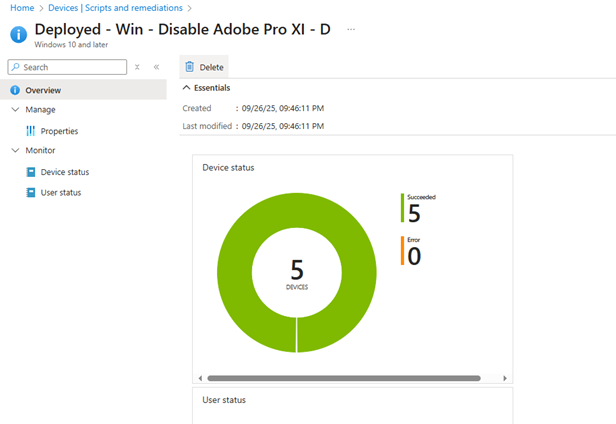
Adobe Pro XI: I used a script to configure the registry key and correct the value.
$RegistryPaths = @(
“HKLM:\SOFTWARE\WOW6432Node\Policies\Adobe\Acrobat\11.0\FeatureLockDown”,
“HKLM:\SOFTWARE\Policies\Adobe\Acrobat\11.0\FeatureLockDown”
)
Get the full Script from GitHub
The result is
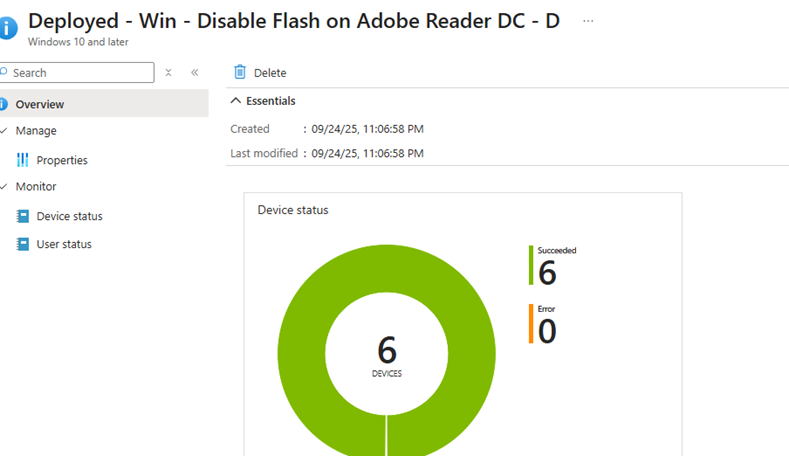
Disable Flash on Adobe Reader DC, I used the script for that one too, to change the value on the Registry Key, both 32 and 64 bit
“HKLM:\SOFTWARE\Policies\Adobe\$($Base.Product)\$($Base.Version)\FeatureLockDown”,
“HKLM:\SOFTWARE\WOW6432Node\Policies\Adobe\$($Base.Product)\$($Base.Version)\FeatureLockDown”
Get the full Script from GitHub
Block webpages from automatically running Flash plugins, By running the script to configure registry Keys for Google Chrome

Get the full Script from GitHub
What key takeaways from this test
- Even in fully patched environments, legacy configurations can still be seen as vulnerabilities.
- Some Microsoft Defender recommendations provide visibility, but some remediation requires registry-level cleanup.
- Regularly check Defender for vulnerabilities and audit registry-based settings to ensure that future OS or app upgrades do not reintroduce these issues.
Thanks for reading and have a saved environment 👍🏻